
Automating Client Research with Apify and Make: A Case Study
A consultant I worked with had a list of 500 companies he wanted to sell to and a research process that didn't scale past five a day. For each one: open the website, find the leadership page, note the executives, go find each of them on LinkedIn, hunt for contact info, and type it all into a spreadsheet. It's the kind of work that's too important to skip and too tedious to do, so it half-happened.
What he asked for was blunt: scrape, enrich, summarize, and load it into HubSpot, with no researchers or virtual assistants in the loop. This is the case study of that build.
The Problem
Before outreach, the client needed meaningful intelligence on each target account: who runs the company, what each of those people does, how to reach them, and a short summary of the business. With 500-plus companies on the list, doing that manually was a bottleneck that put a ceiling on how much outreach could happen at all.
How It Works
The original build ran in Make, with Apify doing the scraping and OpenAI doing the summarizing. That's the version walked through below. It has since been rebuilt as a single n8n agent, which is what the screenshot shows: one agent with memory, a model, and four tools (a company agent, a profile agent, a LinkedIn agent, and Gmail) doing the same job in far fewer steps.
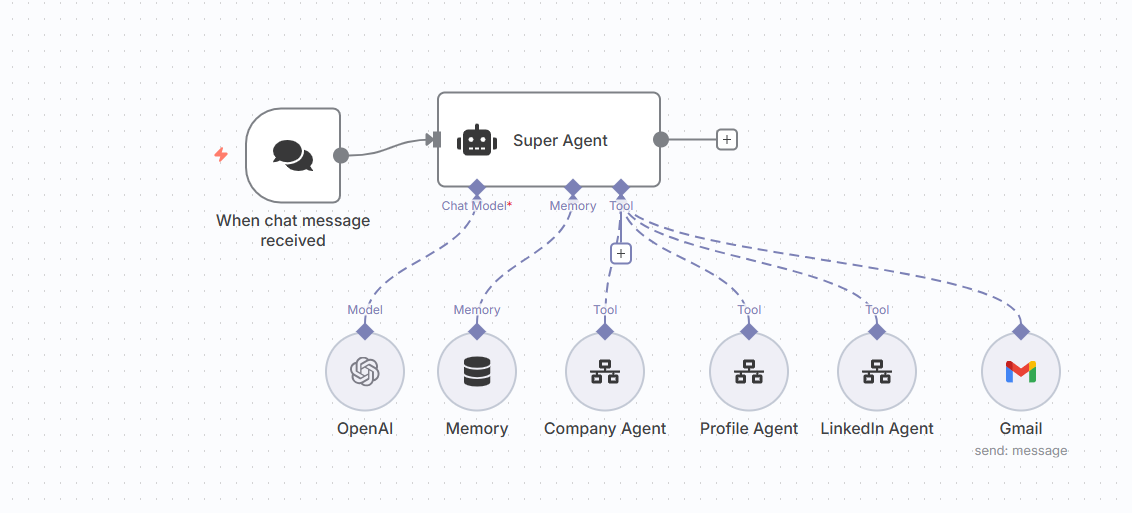
1. Load and clean the list. The scenario reads roughly 500 company websites from a Google Sheet and normalizes the URLs, stripping tracking parameters and trailing slashes so the crawler doesn't choke on them.
2. Scrape each company site. A custom Apify actor crawls each site looking for the Team, Leadership, or About page, and extracts names and titles for executives, directors, and VPs. Where a LinkedIn link is on the page, it grabs it. Where it isn't, it infers the profile from name and company domain.
3. Look up each person. For every contact found, Apify's LinkedIn scraper pulls the public profile: full name, current and past titles, location, any public phone or email, and the profile link.
4. Summarize each person. GPT writes a two-line summary of each contact's background. Something like "CFO with 20+ years in enterprise SaaS, focused on finance transformation and cross-border M&A." Short, specific, and useful for deciding who to contact first.
5. Build the company report. GPT runs again to produce a one-paragraph company summary, a list of all key contacts, a short paragraph on each with title and relevance, and clickable LinkedIn links and formatted phone numbers where available.
6. Load it into HubSpot. The company and contacts go into HubSpot with the summaries in custom fields, contacts associated to the company, and ownership assigned. A Google Sheet keeps a backup, and an optional PDF version exists for offline review.
Where the Time Actually Went
Team pages are all different. Some sites have a tidy leadership page. Some bury it in an About page. Some render it with JavaScript so a simple crawl sees nothing. The scraping logic needed flexibility and fallbacks for every one of those cases, and this was the single biggest time sink.
LinkedIn limits. To avoid getting rate-limited or blocked, requests were throttled and sessions were rotated through proxy pools. This worked, and it's also the part of the build I'd approach differently now (more on that below).
Matching the right person. "John Smith, VP of Sales" at a company called Acme is not a unique identifier. Matching scraped names to the correct LinkedIn profile needed name, title, and company matching with a fuzzy-match score as a backup.
Vague summaries. The first round of GPT bios said things like "an experienced professional in their field," which is worse than nothing. Tightening the prompts to demand specifics took several rounds.
The Results
- All 500-plus companies ingested and enriched in under 24 hours.
- Dozens of finished lead briefs generated per day after that.
- Manual research cut by more than 10 hours a week.
- HubSpot contact quality went up, which improved the personalization inputs for outbound.
"Before this workflow, I had to do manual research on every prospective client, reading their website, identifying potential C-suite and Director level contacts, then manually try to find the contact information for each person. Now I have an easy-to-read, readily available list of prospective clients I can work through - now I'm the bottleneck." - Scott, B2B Consultant
Improvements discussed since: seniority detection to flag VP, Head of, and Founder titles; job-change tracking that notifies when a contact moves roles; confidence scores to flag leads that need a manual look; and AI-written outreach hooks based on public posts or recent company news.
What I'd Do Differently Today
Buy the contact data, scrape the context. LinkedIn scraping has only gotten harder and riskier since this build. Today I'd push contact discovery and emails through an enrichment provider that has its own data agreements, and keep the scraping for the company's own website, where the leadership page is published on purpose. Same output, far less fragility.
Ship the confidence score first. It was on the improvements list and it should have been in version one. A brief that says "80% sure this is the right person" is more useful than one that's silently wrong a tenth of the time.
One agent, not six steps. This one already happened: the research and summarizing steps collapsed into the single n8n agent in the screenshot above. The HubSpot load and the Google Sheet backup I'd still keep as plain steps, because I want those to do exactly the same thing every time.
Wrapping Up
The lesson from this one is about where the bottleneck moves. Scott's quote says it: once the research is automated, the constraint becomes the human doing the outreach, which is the right place for it to be. That's the kind of automation I like building: it removes the busywork and leaves the judgment where it was.
If you're sitting on a list like this, the first question is what you'd do with 500 finished briefs tomorrow. If the answer is "work through them," this is worth building. If the answer is "feel good about having them," start smaller. What to know before you automate has the rest of that checklist.
If you want help thinking through what to automate first, book a free 30-minute call and we'll map it out together.
Frequently asked questions
Can you automate finding decision-makers at a company?
Yes, from public information. In this build, a scraper reads each company's website for its team or leadership page, pulls names and titles for executives and directors, and then looks up each person's public LinkedIn profile for current role, history, and location. A language model writes a short summary of each person, and the whole set is loaded into the CRM.
How do you enrich a HubSpot contact automatically?
Through the HubSpot API. The automation creates or updates the company record, adds each contact with their title and LinkedIn link, writes the AI summary into custom fields, and associates the contacts with the company. A Google Sheet keeps a backup copy of everything.
Is scraping LinkedIn allowed?
It's a gray area, and it has gotten harder and riskier since this build. The scraper only touched public profile data, requests were throttled, and sessions were rotated to stay within limits. Today I'd push most contact enrichment through a data provider with its own agreements and keep scraping for the company website, where the information is published on purpose.
How long does it take to research 500 companies this way?
Under 24 hours for the full list in this case, versus months by hand. After the initial run, the automation kept producing dozens of finished lead briefs a day as new companies were added to the sheet.
How long does the automation take to build?
More than 20 hours. Company websites don't agree on what a team page looks like, matching a scraped name to the right LinkedIn profile needs real logic, and early summaries were vague enough to be useless until the prompts were tightened.